
Working with your AI
You describe a structure and what you want to know. Your assistant writes the xfea script, builds the model and shows it to you, solves it, shows the result and writes a one-page report. Every step leaves something you can look at, and the script is yours: plain Python, saved in your projects folder.
This page follows one request from start to end, then lists what to check and how to ask.
Set up
Section titled “Set up”- Install the MCP server:
pip install xfea-mcp(see Installation). - Add
xfea-mcpto your assistant’s MCP servers. In Claude Desktop that is an entry in its configuration file, shown on the Installation page; any MCP client that starts a local server by command works the same way. - To solve, sign up on app.xfea.ai, subscribe to the plugin for your solver and take
your API key (free during early access); keep it in
~/.xfea/api_key, where the server finds it. Without it the assistant can still build, mesh and show models. See What’s free, what needs an account. - Restart the assistant, and ask it: “Which xfea plugins do you have?” It answers from
describe_xfea_environment: the version, the meshers, the viewers, and how it will solve.
The scripts and results go to your projects folder, ~/xfea-projects unless XFEA_MCP_PROJECTS_DIR says
otherwise, one folder per project.
A request, start to end
Section titled “A request, start to end”A steel portal frame: 12 m span, 6 m columns, fixed bases, IPE 400 throughout. 15 kN/m on the rafter and 10 kN of wind at the left eave. Give me the eave sway and the rafter’s mid-span deflection, against h/300 and span/250.
1. It reads before it writes
Section titled “1. It reads before it writes”The assistant looks up what it needs in the xfea reference (get_xfea_api_reference: the classes, their exact
arguments and the notes on using them, generated from the installed code) and reads the closest example
(list_example_scripts, read_example_script). It writes only what the reference lists, so the script runs on the
xfea you have installed.
2. It writes the script
Section titled “2. It writes the script”save_script checks the script and saves it, here as portal_frame/portal_frame.py. The part that says what the
frame carries reads as the request does:
frame.base_geometry = [ Line((0, 0, 0), (0, 0, height)), # left column Line((0, 0, height), (span, 0, height)), # rafter Line((span, 0, height), (span, 0, 0)), # right column]...model.add_fix_bc(nodes=bases)step.add_uniform_line_load(distribution=rafter, z=-q) # 15 kN/m, downstep.add_uniform_forcefield(nodes=left_eave, x=wind) # 10 kN at the eaveThe script also prints the numbers you asked for, and checks them: the sum of the reactions against the loads.
3. It shows you the model before solving
Section titled “3. It shows you the model before solving”build_model runs the script up to the solve and stops; render_model draws what was built: each part in its own
colour, the mesh, the supports and the loads.
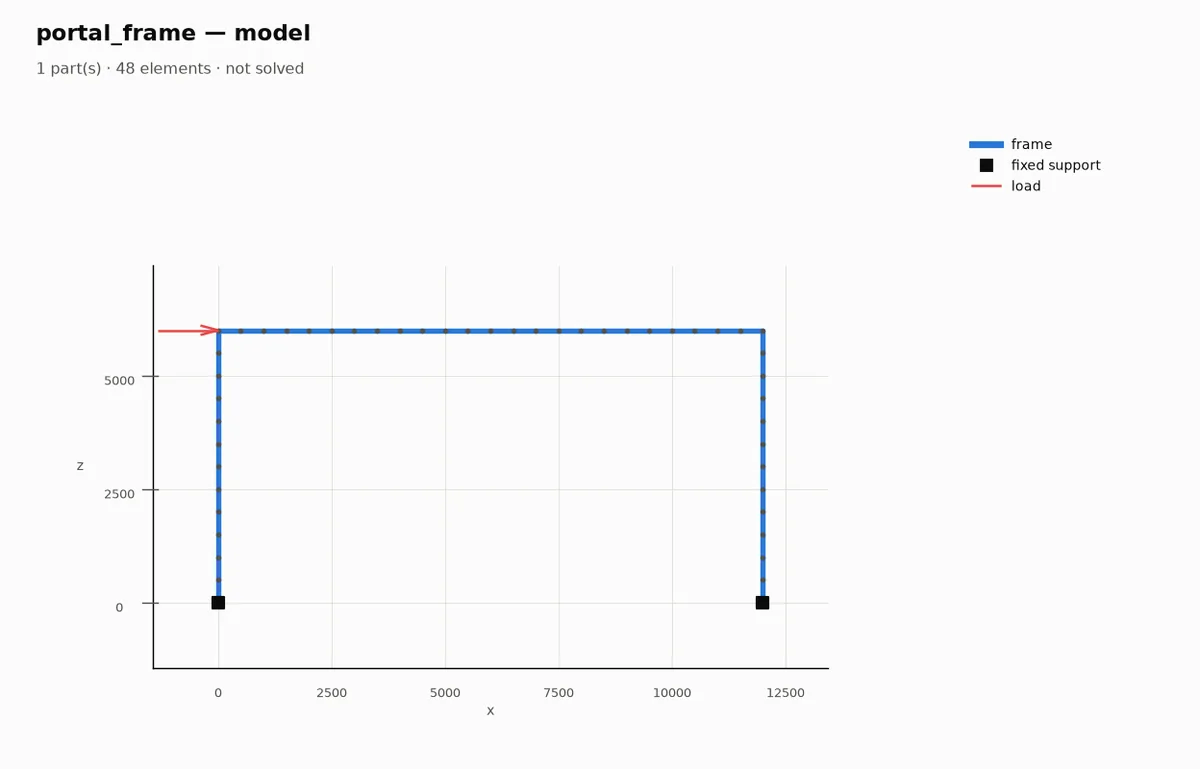
This is the moment to catch a wrong model, before any time is spent solving it: a support in the wrong place, a load on the wrong node, a member missing. The picture draws loads applied at nodes, here the wind; a load spread along members, here the 15 kN/m, is not drawn yet, so check it in the script.
4. It solves
Section titled “4. It solves”run_script runs the script. A short solve returns its output directly. A long one carries on in the background,
and the assistant follows it with run_status: the step, the increment, the iteration and the force residual. It
can stop a solve that is going nowhere with stop_run. In a terminal, xfea status ~/xfea-projects/portal_frame -f
shows the same.
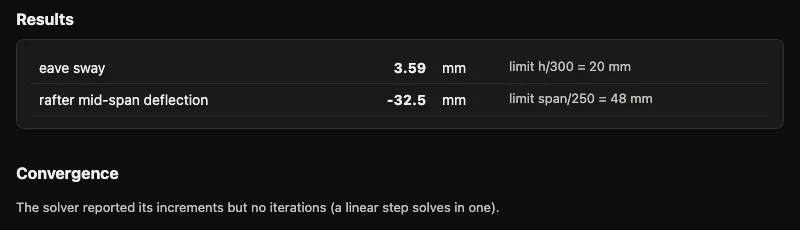
eave sway: 3.6 mm (h/300 = 20 mm)rafter mid-span: -32.5 mm (span/250 = 48 mm)reactions: x -10.0 kN against -10.0, z 180.0 kN against 180.0The reactions balance the loads exactly: the loads went on as intended. The rafter’s 32.7 mm lies between the simply supported (88 mm) and the fully fixed (18 mm) values for this beam, as it should for a portal.
5. It shows you the result
Section titled “5. It shows you the result”show_results draws the deformed shape, coloured by the field that answers the question: the displacement here, the
stress where the script asked for it.
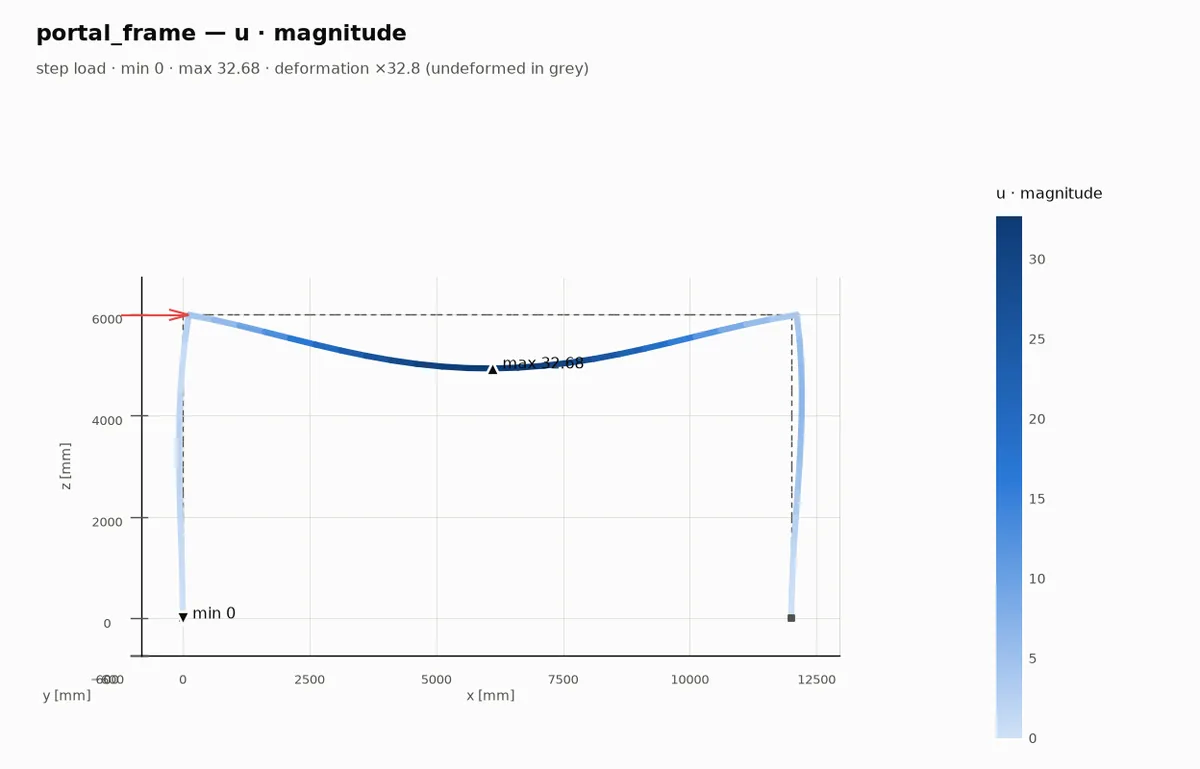
For a closer look, open_3d_viewer opens the results in a 3D viewer in your browser, from your machine.
6. It leaves a report
Section titled “6. It leaves a report”Every solve writes report.html next to its results: the numbers the script recorded with
problem.record_result, the convergence, the model’s make-up, the warnings and the times. One page to open, or to
send.
Checking its work
Section titled “Checking its work”The assistant does the modelling; you are the engineer responsible for the result. Before you use a number:
- The picture against the request. Members, supports, loads and joints where you asked for them.
- The warnings.
model.check()runs before every solve and lists what a solver would get wrong without saying so; the solver’s own warnings follow. Both are in the report. For this frame it noted a section the solver approximates: right for this frame, loaded in its plane, wrong for loads about the weak axis. - Equilibrium. The reactions should add up to the loads. Ask the assistant to print the check, as above.
- A hand check. A formula, a simpler model, a bound. The assistant can do it in the same script.
- The script. It is plain Python in your projects folder: read it, change it, run it again yourself.
Verification shows how xfea’s results compare with known answers.
Asking well
Section titled “Asking well”- Give the numbers. Dimensions, sections, materials, supports, loads, with their units. What is missing, the assistant has to assume; ask it to list its assumptions.
- Say what you want to know. A deflection, a stress, a reaction, a frequency, against which limit.
- Ask to see the model first. “Show me the model before you solve it.”
- Ask for a check. “Check the reactions against the loads”, “compare with the hand formula”.
- Start coarse. For a large model (tens of thousands of solid elements, contact), a coarse mesh first finds the mistakes quickly; refine once it is right.
- Change one thing at a time. “Now make the bases pinned”: the assistant edits the script and solves again, and the two results sit side by side in the project folder.
Watching as it works
Section titled “Watching as it works”The assistant can open a live view (open_live_viewer): one browser tab, beside the chat, that shows each model as
it is built and each result as it comes in. With XFEA_LIVE_VIEWER=1 in the server’s environment it starts with the
server.
XFEA_MCP_NO_BROWSER=1 stops the viewers from opening a browser by themselves; the assistant gives you their
address instead.
The tools
Section titled “The tools”| Tool | What the assistant uses it for |
|---|---|
describe_xfea_environment |
What is installed, where the projects go, how it will solve. |
get_xfea_api_reference |
The reference, by topic: model, materials, sections, elements, supports, loads, steps, results and more. |
list_example_scripts, read_example_script |
The examples, to start from the closest one. |
save_script, check_script_syntax |
Save the script in the projects folder; check it parses. |
build_model |
Run the script up to the solve, and report the parts, supports, loads and releases. |
describe_geometry |
A STEP file’s faces, edges and points, to turn “that edge” or “the bolt holes” into a selection. |
render_model |
A picture of the model before it is solved. |
open_model_viewer |
The model in the 3D viewer, in the browser. |
run_script, run_status, stop_run |
Solve; follow a long solve; stop one that goes nowhere. |
show_results |
A picture of the result: the deformed shape coloured by a field. |
open_3d_viewer |
The results in the 3D viewer. |
open_live_viewer |
One tab that follows the session. |
list_backends, list_meshing_engines, list_viewers |
The plugins installed. |
© 2026 Francesco Ranaudo · Text and pictures CC BY 4.0 · Code Elastic License 2.0 · how to reuse them